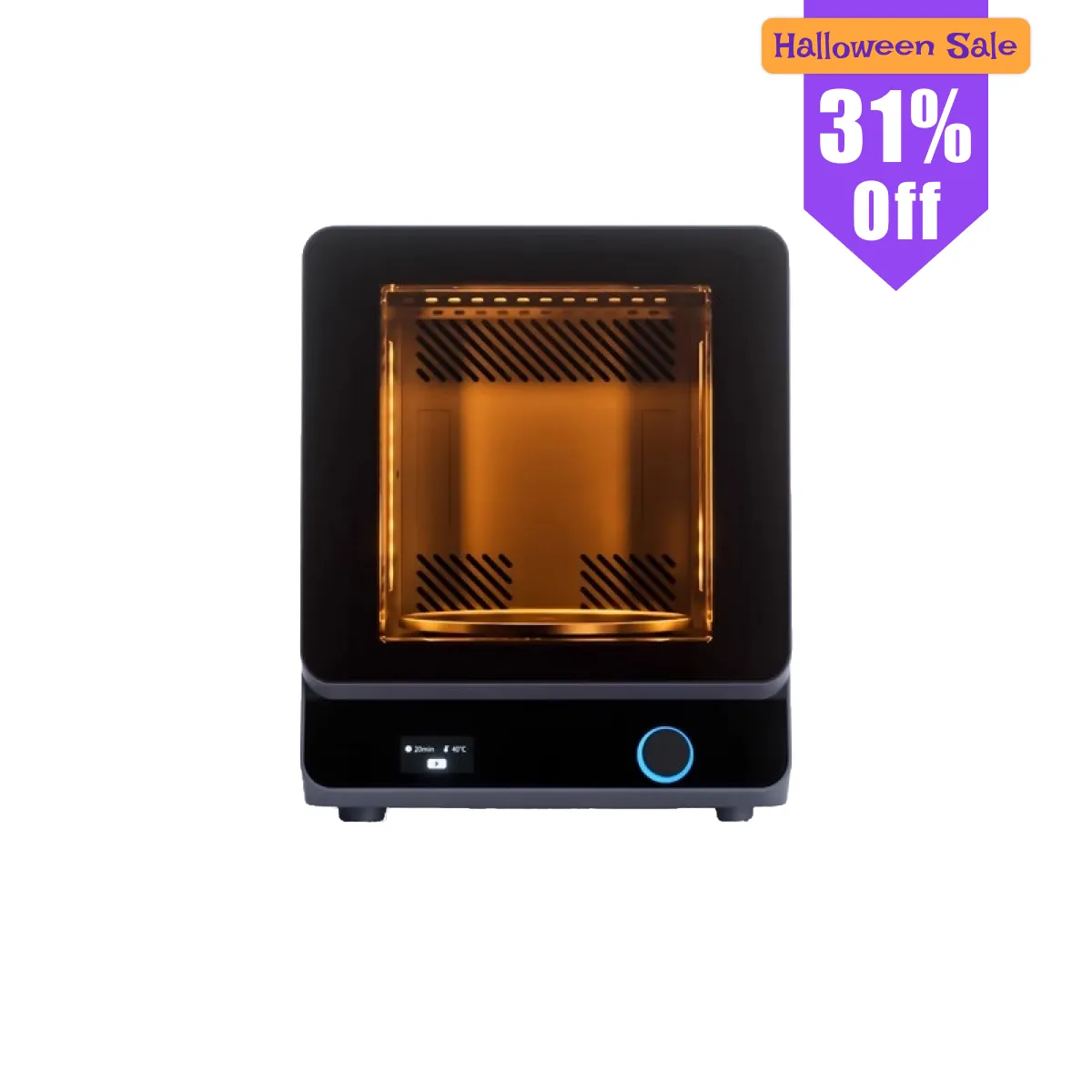
HeyGears Reliability, Greater Flexibility.
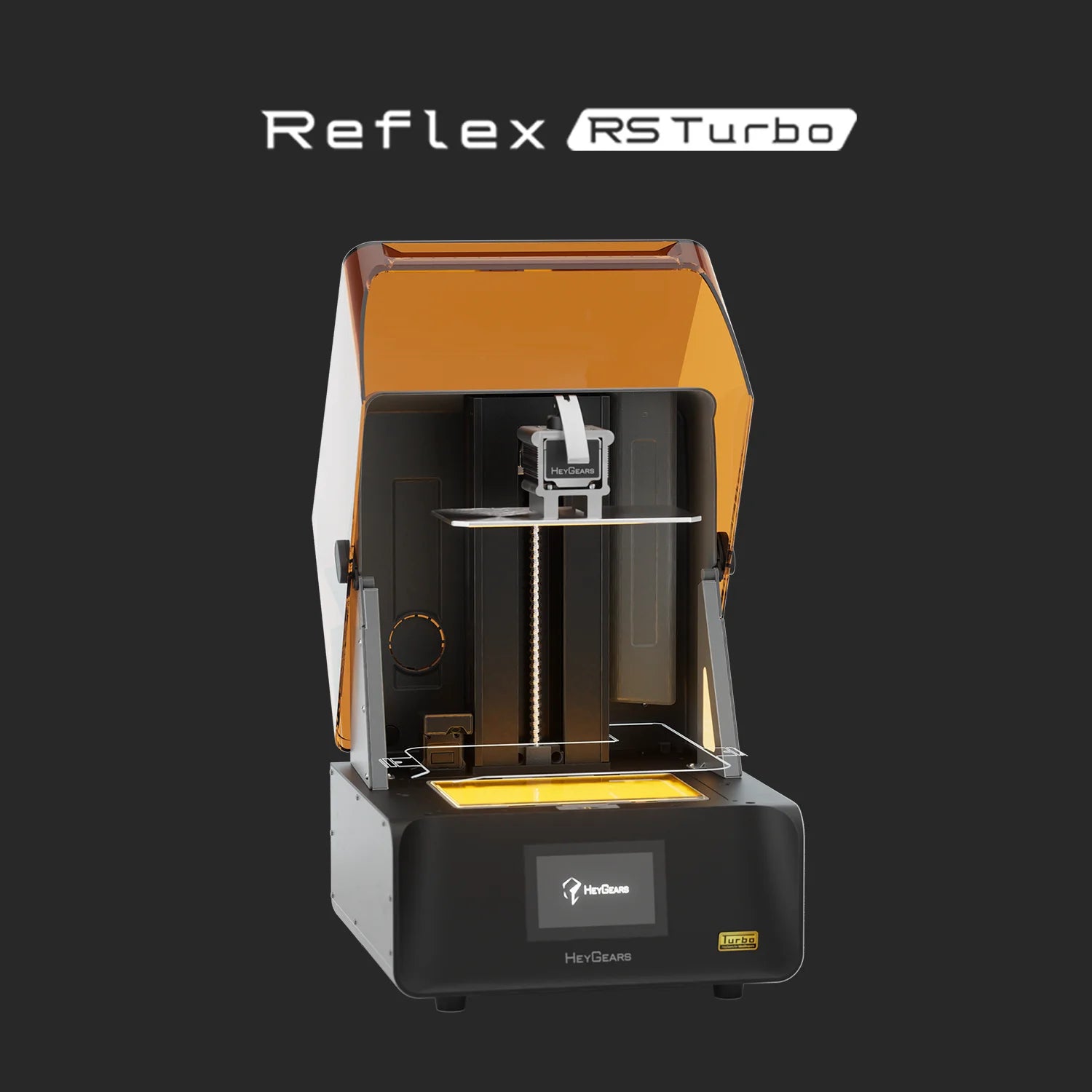
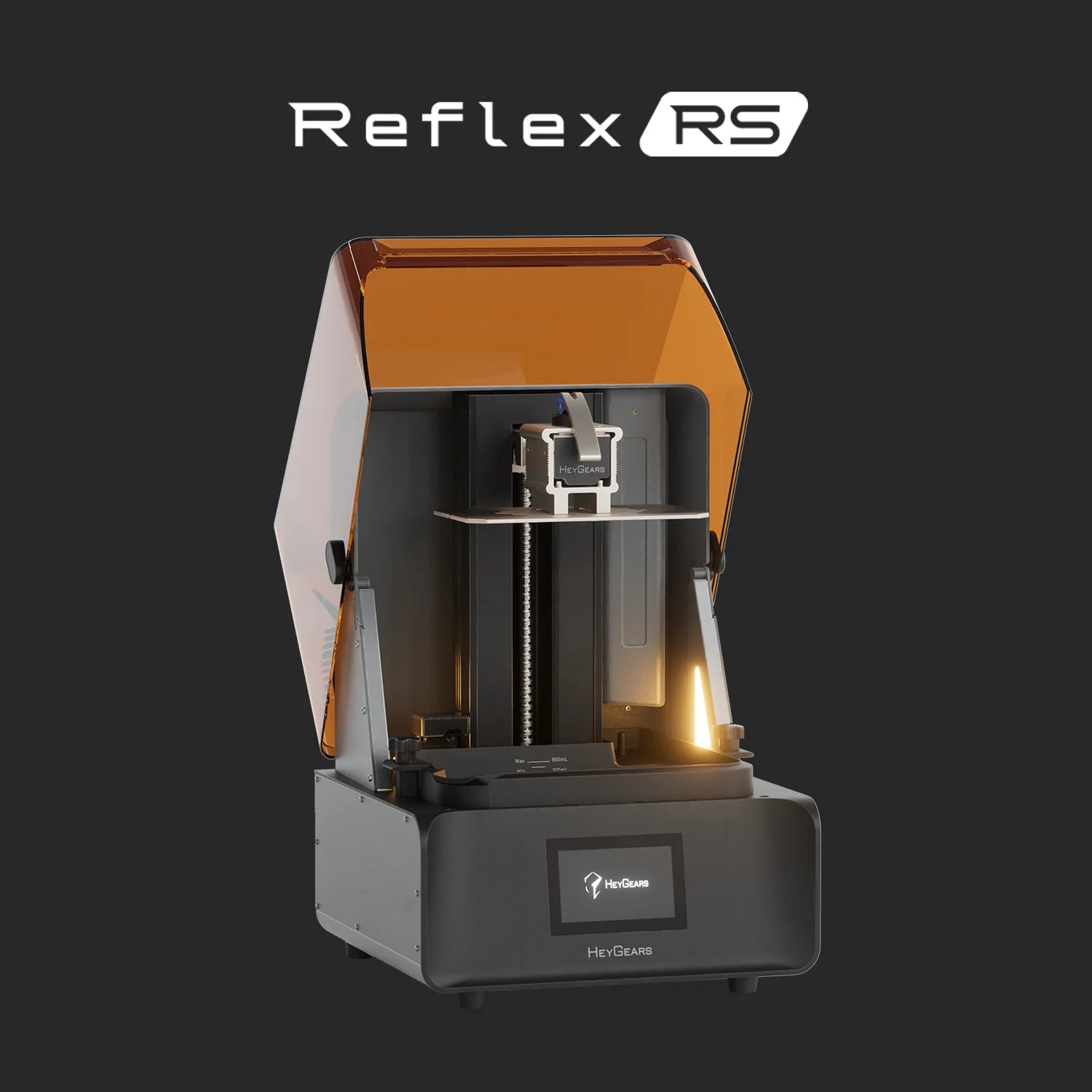
Reflex RS Turbo | Reflex RS
· The RS & RS Turbo offer a great out-of-the-box experience for miniature printing, delivering detailed, high-quality results with stable, reliable performance.
· The RS Turbo also features an upgraded Amber Screen with 2x longer lifespan* for sharper details and consistent prints.
Choose the Workflow That Fits You
Print with ease or customize your way—pick the mode that matches your experience and needs.

Fine-Tuned Resin Profiles
For easy, efficient, and reliable printing
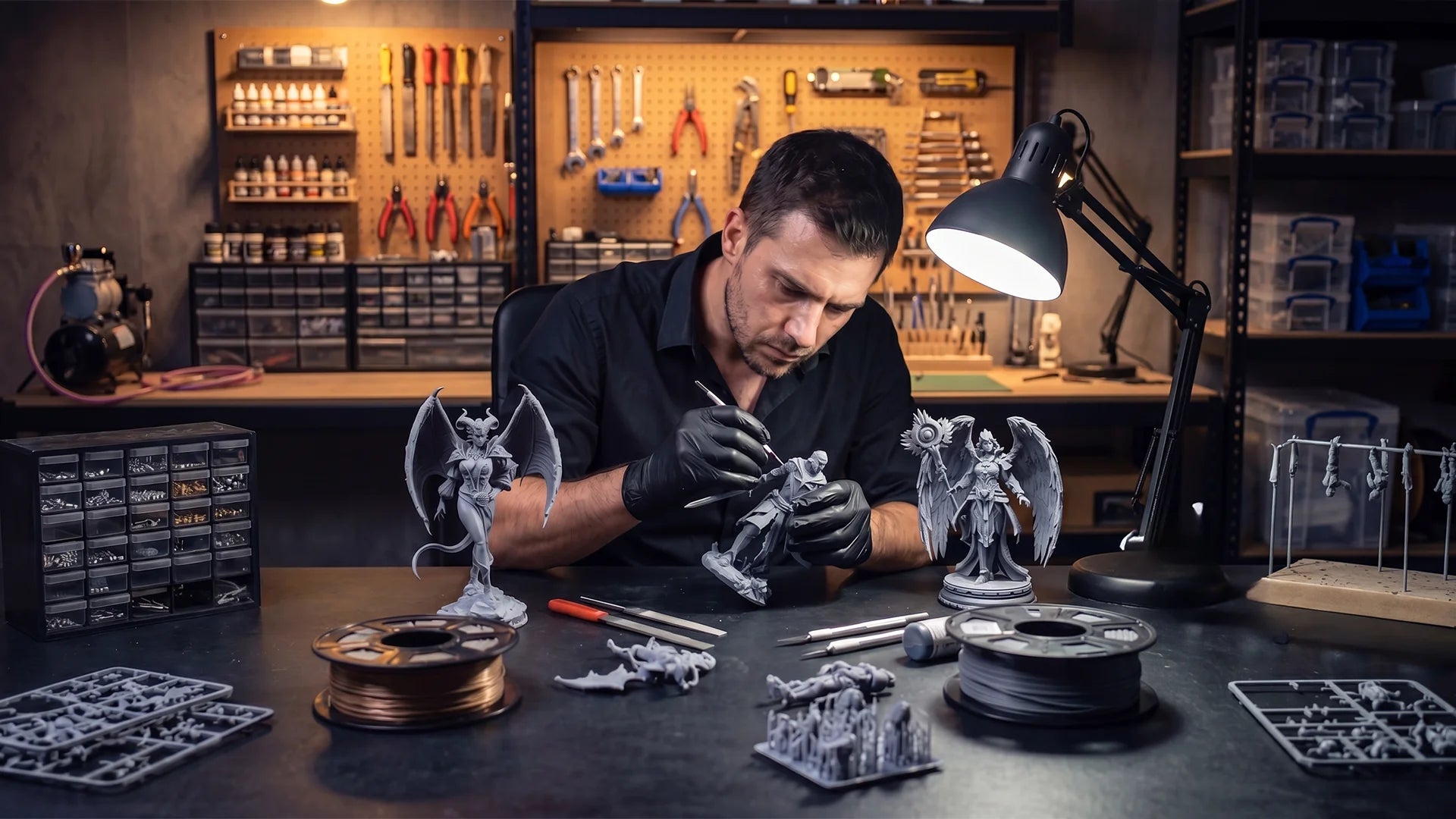
The standard HeyGears fine-tuned resin profiles are the recommended choice for users who want a smoother printing experience with less setup. Each profile is optimized for HeyGears printers, materials, and key miniature applications, helping beginners print large solid models, detailed figures, and intricate miniatures with greater ease and reliability.
Open Material Mode
For experienced users who want more control
Open Material Mode is designed for users with resin printing experience who are ready to test, adjust, and fine-tune their own settings. By adjusting key parameters such as light intensity, exposure time, and dimensional compensation, users can explore more customized printing solutions for different models, materials, and applications.
Note: Hardware warranty coverage remains available when using either mode, subject to HeyGears warranty terms.
How to Use Open Material Mode
Get started with Open Material Mode inthe Blueprint Studio slicer and access key parameter settings for your printing workflow.

Step 1 | Select "Open Material"
Open Blueprint Studio and create a new project. During the Choose Material step, select "Open Material" as your material option.

Step 2 | Access Print Process Editor
In the Slice step, click "Print Process Editor" to view available print parameters and adjust settings based on your material and application needs.